This function adds a new infrared key to the ItemStatus collection of a device. Each device has a property called CustomStatus. This property is a CustomStatus class with two properties:
Status: This is the last status the device was set to. This is normally set to the value of the last infrared key that was pressed. Each key is assigned a unique value. If a user presses the Power key, and this key is assigned a value of 1, then this status will be set to 1. HomeSeer will then use this status to display the current status for the device. In this case, the device status will be set to "Power".
ItemStatus: This is a collection of ItemStatus classes (objects). The ItemStatus object has the following properties:
label: This is the label that appears on the IR key.
ircommand: This is the actual IR command sequence this key sends.
image: This is the path to an image file that will be displayed instead of a standard button.
ir_row: This is the row number where the key will be displayed (row 1 = first row).
ir_column: This is the column number where the key will be displayed (column 1 = first column).
value: This is a unique long integer that is automatically assigned to the key when it's created. The value is copied into the CustomStatus.status property when a key is pressed.
Parameter: dv
Type: deviceclass
Description: This is the DeviceClass object that the new key will be added
to. Use
hs.GetDeviceEX to get
a reference to a device object.
Parameter: label
Type: string
Description: This is the label that
should appear on the key.
Parameter: ircommand
Type: string
Description: This is the actual infrared command to send to the device,
such as tv,on.
Parameter: image
Type: string
Description: This is a path to an image file that will displayed instead
of a standard button.
Parameter: row
Type: long
Description: This is the row where the key should appear when displaying
the key on the control web page (1= the first row).
Parameter: column
Type: long
Description: This is the column where the key should appear when displaying
the key on the control web page (1 = the first column).
None.
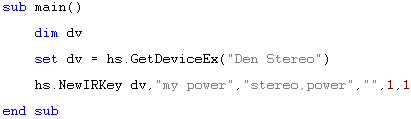
To add a new key to the device "Den stereo":
To get all the IR keys associated with a device:
